Micah Stubbs's Weblog: claude-codehttps://micahstubbs.ai/2026-02-25T13:11:17.688733+00:00Micah StubbsCleaning up taskmaster's terminal output2026-02-25T13:11:17.688733+00:002026-02-25T13:11:17.688733+00:00https://simonwillison.net/2026/Feb/25/cleaning-up-taskmasters-terminal-output/#atom-tag
# Cleaning up taskmaster's terminal output
**2026-02-25**
I forked [taskmaster](https://github.com/micahstubbs/taskmaster) a few recently to stop Claude from quitting early when working in a Claude Code session. The stop [hook](https://github.com/micahstubbs/taskmaster/blob/main/check-completion.sh) fires every time Claude tries to stop and blocks it until he emits an explicit `TASKMASTER_DONE::<session_id>` token — a parseable signal that confirms Claude is actually finished.
It works. The terminal output, though, was a way too much.
#### The problem
Every time the hook blocked a stop attempt, Claude Code dumped the full completion checklist into the terminal:
```
Ran 9 stop hooks (ctrl+o to expand)
⎿ Stop hook error: TASKMASTER (1/100): Verify that
all work is truly complete before stopping.
Before stopping, do each of these checks:
1. RE-READ THE ORIGINAL USER MESSAGE(S). List every discrete request or acceptance criterion. For each one, confirm it is fully addressed — not just started, FULLY done. If the user explicitly changed their mind, withdrew a request, or told you to stop or skip something, treat that item as resolved and do NOT continue working on it.
2. CHECK THE TASK LIST. Review every task. Any task not marked completed? Do it now — unless the user indicated it is no longer wanted.
3. CHECK THE PLAN. Walk through each step. Any step skipped or partially done? Finish it — unless the user redirected or deprioritized it.
4. CHECK FOR ERRORS. Did any tool call, build, test, or lint fail? Fix it.
5. CHECK FOR LOOSE ENDS. Any TODO comments, placeholder code, missing tests, or follow-ups noted but not acted on?
IMPORTANT: The user's latest instructions always take priority. If the user said to stop, move on, or skip something, respect that — do not force completion of work the user no longer wants.
If after this review everything is genuinely 100% done (or explicitly deprioritized by the user), briefly confirm completion for each user request. Otherwise, immediately continue working on whatever remains — do not just describe what is left, ACTUALLY DO IT.
```
Many lines, every time, accumulating across a long session. The checklist is instructions _for the AI_ — I never needed to read it.
#### How the `reason` field works
Claude Code stop hooks return JSON when they want to block a stop:
```json
{ "decision": "block", "reason": "..." }
```
The `reason` field does two things at once:
1. **User-visible output** — shown in the terminal as a "Stop hook error"
2. **AI context** — injected back into the conversation so that Claude knows what to do next
Before, taskmaster was putting the full checklist in `reason`, to ensure that Claude got the instructions. However, this meant taskmaster was also printing the full checklist to my terminal. Every single stop attempt.
#### What I was missing
Claude already has the checklist from the taskmaster [skill file](https://github.com/micahstubbs/taskmaster/blob/main/SKILL.md). Every Claude Code `SKILL.md` file loads into system context at session start. Claude doesn't need instructions repeated in the hook reason — it just needs to know the specific token to emit.
So I stripped the reason down to exactly that:
```bash
DONE_SIGNAL="${DONE_PREFIX}::${SESSION_ID}"
jq -n --arg reason "$DONE_SIGNAL" '{ decision: "block", reason: $reason }'
```
Now the terminal shows one collapsed line:
```
● Ran N stop hooks (ctrl+o to expand)
⎿ Stop hook error: TASKMASTER_DONE::abc123xyz
```
Claude sees the signal he needs. I see almost nothing. Both of us get what we need from the same field.
#### Faster signal detection too
While I was in there I also changed how the hook detects the done signal. The old version opened the transcript file and scanned potentially hundreds of lines of JSON on every stop attempt.
The Claude Code hook API passes `last_assistant_message` directly in the hook's input JSON. Checking that first skips the file read in the common case:
```bash
LAST_MSG=$(echo "$INPUT" | jq -r '.last_assistant_message // ""')
if [ -n "$LAST_MSG" ] && echo "$LAST_MSG" | grep -Fq "$DONE_SIGNAL" 2>/dev/null; then
HAS_DONE_SIGNAL=true
fi
# Only scan the transcript if the message check didn't match
if [ "$HAS_DONE_SIGNAL" = false ] && [ -f "$TRANSCRIPT" ]; then
if tail -400 "$TRANSCRIPT" 2>/dev/null | grep -Fq "$DONE_SIGNAL"; then
HAS_DONE_SIGNAL=true
fi
fi
```
When Claude just emitted the done signal in his last message — the normal case — no transcript parsing happens.
#### The lesson
Hook reasons and system context have different jobs. System context (skill files, `CLAUDE.md`) carries persistent instructions that shape behavior across a whole session. Hook reasons carry transient, stop-specific information — the minimum Claude needs right now.
Here that's: "emit `TASKMASTER_DONE::abc123` and you're done."
The checklist still runs. The skill enforcement is unchanged. It just doesn't output the skill prompt to my terminal anymore.
These changes shipped as [v2.3.0](https://github.com/micahstubbs/taskmaster/releases/tag/v2.3.0).
Read more about how stop decision control and the `reason` field works in the [Claude Code Hooks docs](https://code.claude.com/docs/en/hooks#stop-decision-control).
<p>Tags: <a href="https://micahstubbs.net/tags/claude-code">claude-code</a>, <a href="https://micahstubbs.net/tags/shell-scripting">shell-scripting</a>, <a href="https://micahstubbs.net/tags/developer-tools">developer-tools</a>, <a href="https://micahstubbs.net/tags/ai-agents">ai-agents</a>, <a href="https://micahstubbs.net/tags/cli-ux">cli-ux</a>, <a href="https://micahstubbs.net/tags/hook-design">hook-design</a></p>
Claude Code starts faster on Ubuntu when installed via Homebrew2026-01-26T13:45:44.472470+00:002026-01-26T13:45:44.472470+00:00https://simonwillison.net/2026/Jan/26/claude-code-starts-faster-on-ubuntu-when-installed-via-homebrew/#atom-tag
# Claude Code starts faster on Ubuntu when installed via Homebrew
I noticed something today: [Claude Code](https://claude.ai/code) starts up noticeably faster on my Ubuntu machine when I install it via [Homebrew](https://brew.sh) instead of npm.
So I benchmarked it.
#### TIL: Homebrew works on Linux
The same Homebrew that macOS developers have used for years runs on Linux too (apparently since [February 2019](https://brew.sh/2019/02/02/homebrew-2.0.0/#:~:text=02%20February%202019,0:)). Nifty.
Here's the install command:
```bash
/bin/bash -c "$(curl -fsSL https://raw.githubusercontent.com/Homebrew/install/HEAD/install.sh)"
```
#### Installing Claude Code
Once Homebrew is set up:
```bash
brew install --cask claude-code
```
The [Homebrew formula page](https://formulae.brew.sh/cask/claude-code) has the details.
#### The benchmarks
I wrote a [Python script](https://github.com/micahstubbs/claude-code-benchmarks/blob/master/scripts/benchmark_comprehensive.py) using pexpect to measure time-to-first-prompt across different configurations. Each configuration got 3 cold/warm paired measurements.
**Test system:** Ubuntu Linux, Claude Code v2.1.19
| Configuration | Cold (ms) | Cold σ | Warm (ms) | Warm σ |
|--------------|-----------|--------|-----------|--------|
| Homebrew | 2480 | ±631 | **2010** | ±52 |
| Homebrew + `--chrome` | 2216 | ±159 | 2333 | ±282 |
| Node.js (nvm) | 2421 | ±193 | 2334 | ±108 |
| Node.js (nvm) + `--chrome` | 3021 | ±351 | 2480 | ±56 |
The fastest configuration is Homebrew without the `--chrome` flag: **2010ms** warm start. That's our baseline.
#### Percentage difference from baseline
Using Homebrew warm start (2010ms) as the baseline:
| Configuration | Cold | Warm |
|--------------|------|------|
| Homebrew (baseline) | +23% | **0%** |
| Homebrew + `--chrome` | +10% | +16% |
| Node.js (nvm) | +20% | +16% |
| Node.js (nvm) + `--chrome` | +50% | +23% |
The worst case is Node.js with `--chrome` on a cold start: 50% slower than baseline.
#### What's causing the difference?
**NVM overhead:** Node.js via nvm adds ~256ms just for `source nvm.sh && nvm use 24`. That's unavoidable if you manage Node versions with nvm.
**The `--chrome` flag:** Impact is inconsistent. Sometimes it adds 150ms, sometimes 300ms+. Probably depends on whether Chrome is already running and other system state.
**Cold vs warm:** Cold starts vary significantly (±200-600ms). Warm starts are much more consistent, especially Homebrew without `--chrome` (±52ms stddev).
#### Recommendations
| Use case | Configuration | Expected time |
|----------|--------------|---------------|
| Fastest startup | Homebrew, no flags | ~2.0s |
| With Chrome integration | Homebrew + `--chrome` | ~2.3s |
| Node.js required | nvm, no `--chrome` | ~2.3s |
| Avoid | Node.js + `--chrome` cold start | ~3.0s |
#### Bottom line
Homebrew is about 16% faster than Node.js for warm starts. If you're running Claude Code on Linux and the startup lag bothers you, switching to Homebrew is worth it.
The benchmark code is on [GitHub](https://github.com/micahstubbs/claude-code-benchmarks) if you want to run your own tests.
<p>Tags: <a href="https://micahstubbs.net/tags/claude-code">claude-code</a>, <a href="https://micahstubbs.net/tags/linux">linux</a>, <a href="https://micahstubbs.net/tags/homebrew">homebrew</a>, <a href="https://micahstubbs.net/tags/ubuntu">ubuntu</a>, <a href="https://micahstubbs.net/tags/developer-tools">developer-tools</a>, <a href="https://micahstubbs.net/tags/cli">cli</a></p>
Systematic Debugging the Overnight OOM2026-01-24T10:16:49+00:002026-01-24T10:16:49+00:00https://simonwillison.net/2026/Jan/24/oom-debugging-systematic-approach/#atom-tag
#### Tracking down the OOM event
I woke up this morning to find my GNOME session had crashed overnight. Terminal sessions gone, browsers closed, had to log back in. The `journalctl` output told me why: an Out of Memory event that killed 48 processes at `00:56:33`.
My gut reaction was to blame Chrome or some runaway Node process, but this time I decided to actually look into it.
#### Systematic debugging with Claude
I asked [Claude](https://code.claude.com/docs/en/overview) to investigate using my `sd` short alias for [Jesse Vincent](https://metasocial.com/@jesse)'s excellent `systematic-debugging` [skill](https://github.com/obra/superpowers/blob/main/skills/systematic-debugging/SKILL.md), a four-phase debugging framework that goes:
1. Root Cause Investigation
2. Pattern Analysis
3. Hypothesis Testing
4. Implementation
That order matters. No guessing allowed.
```
please scan all claude code transcripts and the relevant system logs and develop three hypothesis, using the sd skill, as to what caused the OOM in the last ~6 hours or so
```
#### What got killed
Here's what `journalctl` showed:
14 orphaned `bd` processes stood out.
`bd` is the golang implementation of [beads](https://github.com/yegge/beads), a git-backed issue tracker I use with Claude Code. It spawns processes for triage, graph computations, and IPC. When Claude subagents invoke it, apparently these child processes weren't getting cleaned up.
The system had been running for 13+ days. 14 zombie beads processes built up over that time.
| Process | Count |
|---------|-------|
| `bd` | 14 |
| `zsh` | 11 |
| `http-server` | 5 |
| `python` | 4 |
| `claude` | 2 |
| `zoom` | 1 |
#### Three hypotheses
**Beads process accumulation** Each `bd` process holds memory for issue caching, graph operations (PageRank, betweenness), and IPC channels. 14 orphans over 13 days of uptime. Most likely cause.
**Claude transcript growth** Found transcript files at 491MB and 348MB. One session had 64 subagent files. Long-running sessions with large contexts might not free memory properly.
**http-server leaks** 5 orphaned `http-server` processes. Claude spawns these for HTML previews. When sessions crash, they persist.
#### The pattern underneath
All three point to the same thing: process lifecycle management failure.
When a parent process exits, children should get `SIGHUP` and terminate. But if they're detached or `nohup`'d, they become orphans with `PPID=1`. Without explicit cleanup, they stick around. Memory builds up. Eventually the OOM killer steps in.
The system has 62GB RAM and 80GB swap. Usage was at 42GB, not dangerous by itself. But multiple processes trying to allocate at once can still trigger the OOM killer.
#### Switching to beads_rust
The investigation led to a related change: migrating from `bd` to `br` ([beads_rust](https://github.com/Dicklesworthstone/beads_rust)) from [@doodlestein](https://x.com/doodlestein).
```
please replace bd with br ... in ~/.claude, all CLAUDE.mds, all claude skills, and everywhere else that `bd` is mentioned
```
The differences in `br`:
- Never auto-commits to git
- No background daemon processes
- You run `br sync --flush-only` explicitly when you want to sync
The golang `bd` had automatic background syncing and daemons. The Rust version makes everything explicit. Nothing runs unless you tell it to.
- `beads_rust`: You want a stable, minimal issue tracker that stays out of your way.
- `beads`: You want advanced features like Linear/Jira sync, RPC daemon, and automatic hooks.
Here's a [full comparison](https://github.com/Dicklesworthstone/beads_rust?tab=readme-ov-file#br-vs-original-beads-go):
| | `br` | `beads` |
|--------|------|---------|
| Language | Rust | Go |
| Lines of code | ~20,000 | ~276,000 |
| Git operations | Never (explicit) | Auto-commit, hooks |
| Storage | [SQLite](https://sqlite.org/) + [JSONL](https://jsonlines.org/) | [SQLite](https://sqlite.org/)/[Dolt](https://github.com/dolthub/dolt) |
| Background daemon | No | Yes |
| Hook installation | Manual | Automatic |
| Binary size | ~5-8 MB | ~30+ MB |
| Complexity | Focused | Feature-rich |
#### What I took away
The systematic debugging skill stopped me from doing what I normally would have done: blame Chrome, kill some processes, call it a day. Instead I got actual evidence pointing to 14 zombie beads processes that had built up over two weeks.
The fix wasn't just killing processes. It was figuring out why they accumulated and switching to a tool that handles process lifecycle better.
Full investigation notes: [oom-investigation-2026-01-24.md](https://gist.github.com/micahstubbs/2c885a9eb7596aaa051d809cbd1fcc21)
<p>Tags: <a href="https://micahstubbs.net/tags/claude-code">claude-code</a>, <a href="https://micahstubbs.net/tags/debugging">debugging</a>, <a href="https://micahstubbs.net/tags/oom">oom</a>, <a href="https://micahstubbs.net/tags/systematic-debugging">systematic-debugging</a>, <a href="https://micahstubbs.net/tags/linux">linux</a>, <a href="https://micahstubbs.net/tags/superpowers">superpowers</a>, <a href="https://micahstubbs.net/tags/beads">beads</a>, <a href="https://micahstubbs.net/tags/skills">skills</a>, <a href="https://micahstubbs.net/tags/rust">rust</a>, <a href="https://micahstubbs.net/tags/prompts">prompts</a></p>
Pasting images into Claude Code from Kitty terminal2026-01-15T06:58:03.681857+00:002026-01-15T06:58:03.681857+00:00https://simonwillison.net/2026/Jan/15/kitty-image-paste-claude-code/#atom-tag
I've been using the [kitty](https://sw.kovidgoyal.net/kitty/) terminal a lot recently. It has tabs and Themes. It's fast. If Claude is a crab, kitty is his shell.
When I run [Claude Code](https://claude.ai/code) in kitty, the one workflow that keeps tripping me up is pasting images. On macOS or in other terminals, I can copy a screenshot or image file, hit Ctrl+V (or Cmd+V), and the image is pasted and passed to Claude for analysis. In Kitty on Ubuntu? Nothing happens.
Kitty doesn't have built-in support for pasting images directly into the terminal. It turns out this is solvable with a small shell script and some configuration.
This matters for Claude Code because one of its most useful features is the ability to analyze screenshots. "Here's a screenshot of the bug" or "here's the design I'm trying to implement" are incredibly useful prompts—but only if you can actually show Claude the image.
#### The solution
The trick is to intercept Ctrl+V, check whether the clipboard contains an image, and if so, save it to a temp file and paste the file path instead. Claude Code can then read the image from that path.
I found [a solution on shukebeta's blog](https://blog.shukebeta.com/2025/07/11/quick-fix-claude-code-image-paste-in-linux-terminal/) that does exactly this. Here's the setup:
#### Step 1: Install xclip
For X11 systems (which is what I'm running on Ubuntu):
```bash
sudo apt install xclip
```
For Wayland, you'd install `wl-clipboard` instead.
#### Step 2: Create the clipboard script
Create a file at `~/bin/clip2path`:
```bash
#!/usr/bin/env bash
set -e
if [ -n "$WAYLAND_DISPLAY" ]; then
types=$(wl-paste --list-types)
if grep -q '^image/' <<<"$types"; then
ext=$(grep -m1 '^image/' <<<"$types" | cut -d/ -f2 | cut -d';' -f1)
file="/tmp/clip_$(date +%s).${ext}"
wl-paste > "$file"
printf '%q' "$file" | kitty @ send-text --stdin
else
wl-paste --no-newline | kitty @ send-text --stdin
fi
elif [ -n "$DISPLAY" ]; then
types=$(xclip -selection clipboard -t TARGETS -o)
if grep -q '^image/' <<<"$types"; then
ext=$(grep -m1 '^image/' <<<"$types" | cut -d/ -f2 | cut -d';' -f1)
file="/tmp/clip_$(date +%s).${ext}"
xclip -selection clipboard -t "image/${ext}" -o > "$file"
printf '%q' "$file" | kitty @ send-text --stdin
else
xclip -selection clipboard -o | kitty @ send-text --stdin
fi
fi
```
The script checks whether you're on Wayland or X11, queries the clipboard for available MIME types, and either dumps the image to a temp file (pasting the path) or passes through text normally.
Make it executable:
```bash
mkdir -p ~/bin
chmod +x ~/bin/clip2path
```
#### Step 3: Configure Kitty
Add these lines to `~/.config/kitty/kitty.conf`:
```
allow_remote_control yes
listen_on unix:/tmp/kitty-socket
map ctrl+v launch --type=background --allow-remote-control --keep-focus ~/bin/clip2path
```
The `allow_remote_control` and `listen_on` settings let the script communicate back to Kitty via `kitty @ send-text`. The key mapping intercepts Ctrl+V and runs our script instead of the default paste.
#### Step 4: Restart Kitty
Close and reopen Kitty for the changes to take effect.
#### Using it
Now when I copy a screenshot and press Ctrl+V in Kitty, I get something like:
```
/tmp/clip_1768458331.png
```
Claude Code picks up that file path and can read the image. I tested it by pasting this screenshot:
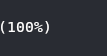
I asked Claude what number was in the image—he correctly identified "100".
Text paste still works normally. The script detects whether the clipboard contains image data and only does the temp-file dance when necessary.
#### One thing to note
The temp files accumulate in `/tmp/` but get cleared on reboot. If you're pasting a lot of images in a long session, you might want to periodically clean them up, but in practice it hasn't been an issue for me.
Kitty also has a built-in `kitten clipboard` command that can retrieve images manually:
```bash
kitten clipboard -g picture.png
```
But having Ctrl+V just work is much more convenient for the Claude Code workflow. Want to use this yourself? Ask Claude set it up for you:
```
please setup image pasting for kitty as described in this blog post: https://micahstubbs.ai/2026/Jan/15/kitty-image-paste-claude-code/
```
<p>Tags: <a href="https://micahstubbs.net/tags/ai">ai</a>, <a href="https://micahstubbs.net/tags/claude-code">claude-code</a>, <a href="https://micahstubbs.net/tags/linux-desktop">linux-desktop</a>, <a href="https://micahstubbs.net/tags/developer-workflow">developer-workflow</a>, <a href="https://micahstubbs.net/tags/shell-scripting">shell-scripting</a>, <a href="https://micahstubbs.net/tags/kitty">kitty</a></p>