Micah Stubbs's Weblog: linux-desktophttps://micahstubbs.ai/2026-01-15T06:58:03.681857+00:00Micah StubbsPasting images into Claude Code from Kitty terminal2026-01-15T06:58:03.681857+00:002026-01-15T06:58:03.681857+00:00https://simonwillison.net/2026/Jan/15/kitty-image-paste-claude-code/#atom-tag
I've been using the [kitty](https://sw.kovidgoyal.net/kitty/) terminal a lot recently. It has tabs and Themes. It's fast. If Claude is a crab, kitty is his shell.
When I run [Claude Code](https://claude.ai/code) in kitty, the one workflow that keeps tripping me up is pasting images. On macOS or in other terminals, I can copy a screenshot or image file, hit Ctrl+V (or Cmd+V), and the image is pasted and passed to Claude for analysis. In Kitty on Ubuntu? Nothing happens.
Kitty doesn't have built-in support for pasting images directly into the terminal. It turns out this is solvable with a small shell script and some configuration.
This matters for Claude Code because one of its most useful features is the ability to analyze screenshots. "Here's a screenshot of the bug" or "here's the design I'm trying to implement" are incredibly useful prompts—but only if you can actually show Claude the image.
#### The solution
The trick is to intercept Ctrl+V, check whether the clipboard contains an image, and if so, save it to a temp file and paste the file path instead. Claude Code can then read the image from that path.
I found [a solution on shukebeta's blog](https://blog.shukebeta.com/2025/07/11/quick-fix-claude-code-image-paste-in-linux-terminal/) that does exactly this. Here's the setup:
#### Step 1: Install xclip
For X11 systems (which is what I'm running on Ubuntu):
```bash
sudo apt install xclip
```
For Wayland, you'd install `wl-clipboard` instead.
#### Step 2: Create the clipboard script
Create a file at `~/bin/clip2path`:
```bash
#!/usr/bin/env bash
set -e
if [ -n "$WAYLAND_DISPLAY" ]; then
types=$(wl-paste --list-types)
if grep -q '^image/' <<<"$types"; then
ext=$(grep -m1 '^image/' <<<"$types" | cut -d/ -f2 | cut -d';' -f1)
file="/tmp/clip_$(date +%s).${ext}"
wl-paste > "$file"
printf '%q' "$file" | kitty @ send-text --stdin
else
wl-paste --no-newline | kitty @ send-text --stdin
fi
elif [ -n "$DISPLAY" ]; then
types=$(xclip -selection clipboard -t TARGETS -o)
if grep -q '^image/' <<<"$types"; then
ext=$(grep -m1 '^image/' <<<"$types" | cut -d/ -f2 | cut -d';' -f1)
file="/tmp/clip_$(date +%s).${ext}"
xclip -selection clipboard -t "image/${ext}" -o > "$file"
printf '%q' "$file" | kitty @ send-text --stdin
else
xclip -selection clipboard -o | kitty @ send-text --stdin
fi
fi
```
The script checks whether you're on Wayland or X11, queries the clipboard for available MIME types, and either dumps the image to a temp file (pasting the path) or passes through text normally.
Make it executable:
```bash
mkdir -p ~/bin
chmod +x ~/bin/clip2path
```
#### Step 3: Configure Kitty
Add these lines to `~/.config/kitty/kitty.conf`:
```
allow_remote_control yes
listen_on unix:/tmp/kitty-socket
map ctrl+v launch --type=background --allow-remote-control --keep-focus ~/bin/clip2path
```
The `allow_remote_control` and `listen_on` settings let the script communicate back to Kitty via `kitty @ send-text`. The key mapping intercepts Ctrl+V and runs our script instead of the default paste.
#### Step 4: Restart Kitty
Close and reopen Kitty for the changes to take effect.
#### Using it
Now when I copy a screenshot and press Ctrl+V in Kitty, I get something like:
```
/tmp/clip_1768458331.png
```
Claude Code picks up that file path and can read the image. I tested it by pasting this screenshot:
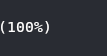
I asked Claude what number was in the image—he correctly identified "100".
Text paste still works normally. The script detects whether the clipboard contains image data and only does the temp-file dance when necessary.
#### One thing to note
The temp files accumulate in `/tmp/` but get cleared on reboot. If you're pasting a lot of images in a long session, you might want to periodically clean them up, but in practice it hasn't been an issue for me.
Kitty also has a built-in `kitten clipboard` command that can retrieve images manually:
```bash
kitten clipboard -g picture.png
```
But having Ctrl+V just work is much more convenient for the Claude Code workflow. Want to use this yourself? Ask Claude set it up for you:
```
please setup image pasting for kitty as described in this blog post: https://micahstubbs.ai/2026/Jan/15/kitty-image-paste-claude-code/
```
<p>Tags: <a href="https://micahstubbs.net/tags/ai">ai</a>, <a href="https://micahstubbs.net/tags/claude-code">claude-code</a>, <a href="https://micahstubbs.net/tags/linux-desktop">linux-desktop</a>, <a href="https://micahstubbs.net/tags/developer-workflow">developer-workflow</a>, <a href="https://micahstubbs.net/tags/shell-scripting">shell-scripting</a>, <a href="https://micahstubbs.net/tags/kitty">kitty</a></p>